A DocuRise image shows up when I share a link. How do I change it?
Change the image for the document you're sharing, or set a default image for new documents.
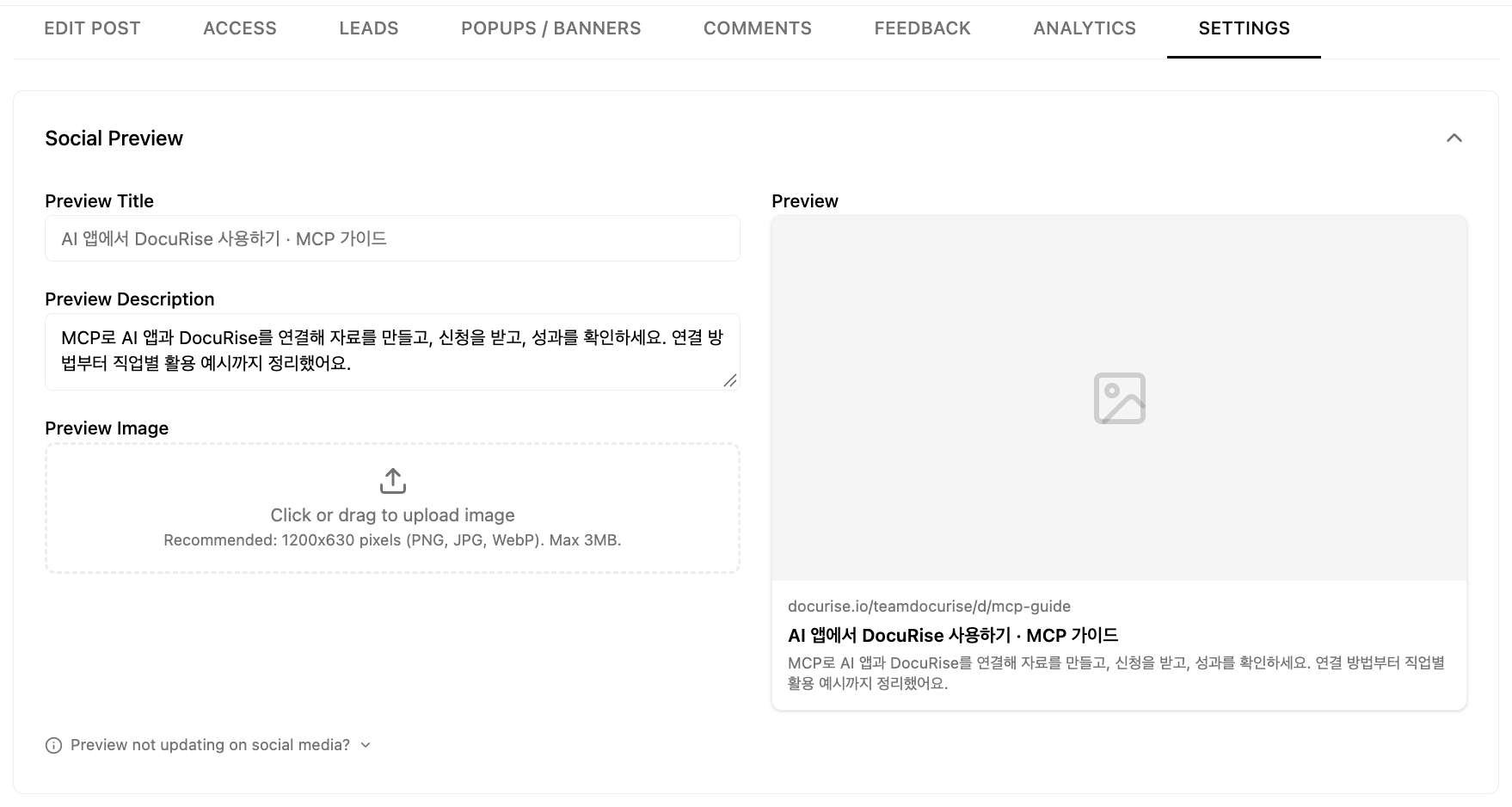
Change the image for one document
- Open the document or post from your document list.
- Settings → Social Preview.
- Upload the image you want in Preview image. You can change the title and description here too.
Set a default image for new documents
- In the left menu, open Settings → General.
- Click Choose image under Default preview image.
- Pick an image, then click Save.
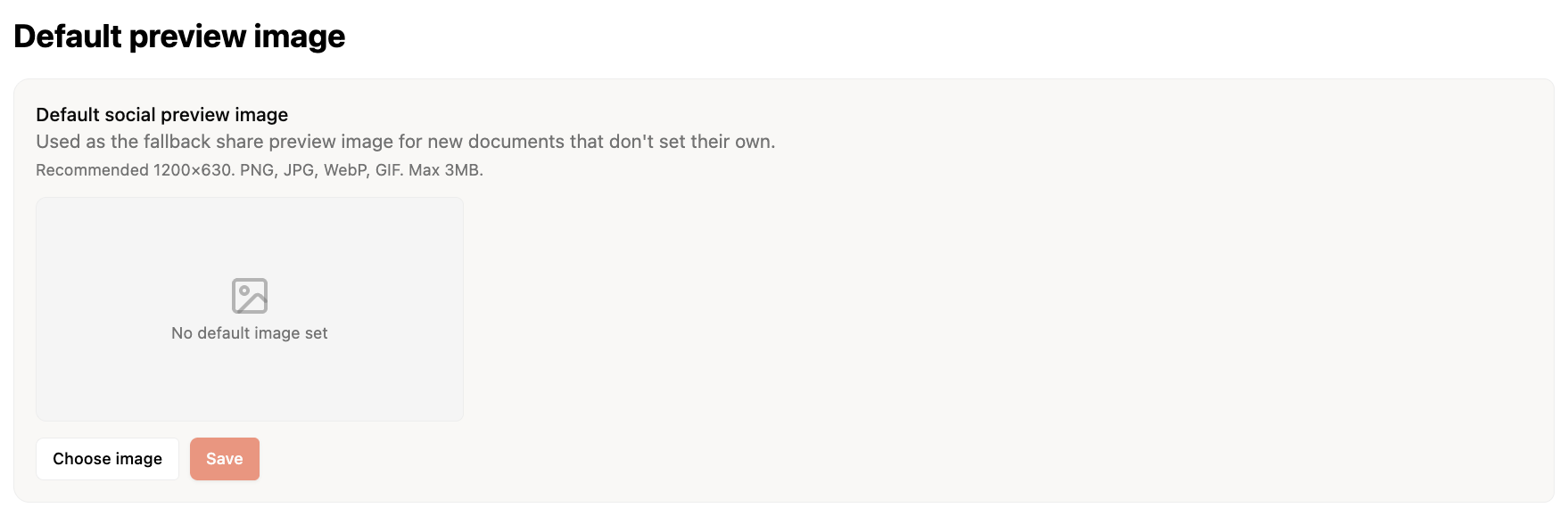
The default image is used for new documents that don't have their own share image. To change a document you're already sharing, edit that document's settings.
The recommended size is 1200×630px, and the maximum file size is 3MB. You can use PNG, JPG, or WebP files.
Still need help?
Tell us what you need help with and which screen you are using.