Where do I rename an automation?
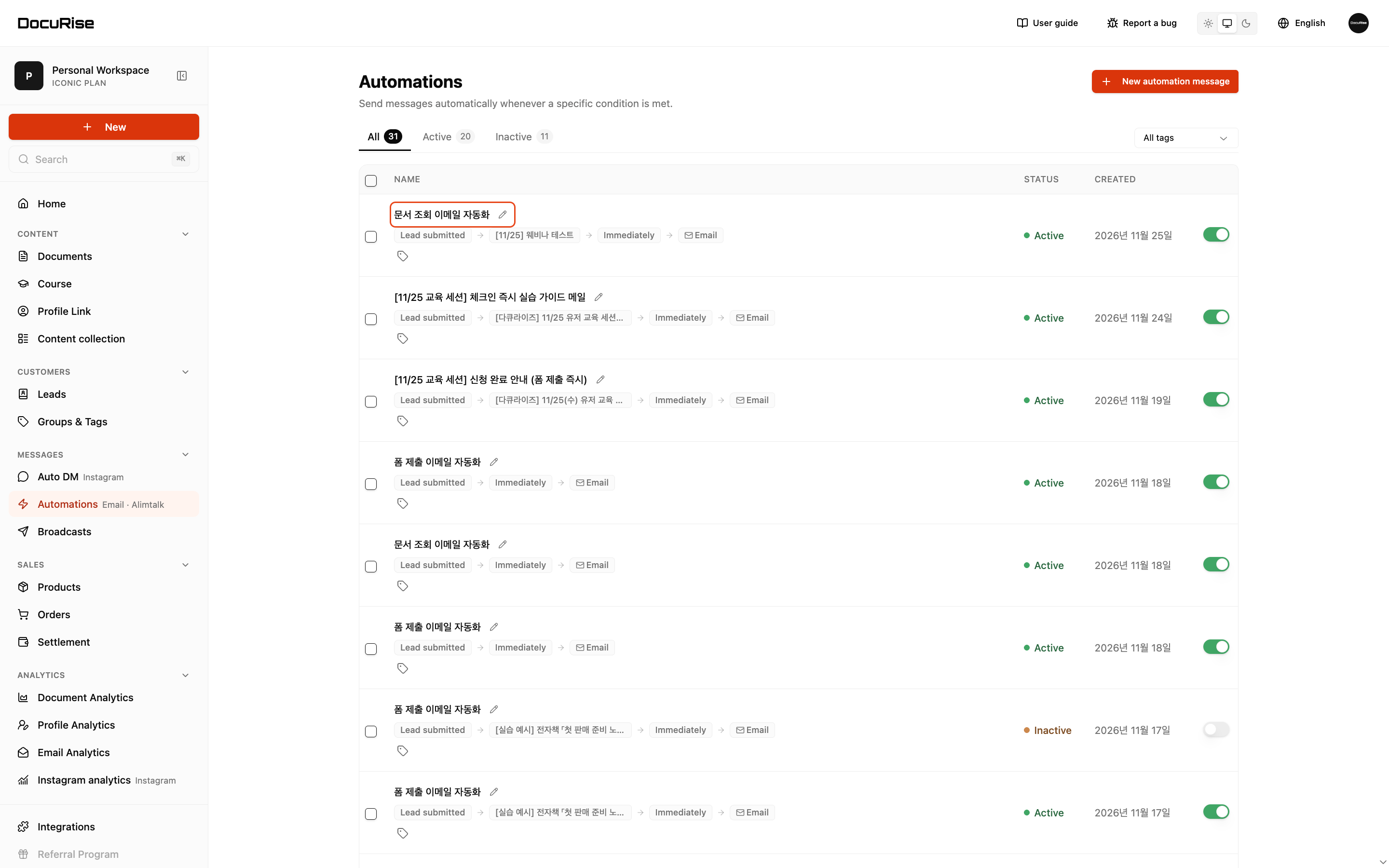
Click the pencil icon next to the name in the automations list or on the automation page to rename it right there.
Rename from the automations list
- Open Automations.
- Click the pencil icon next to the automation name you want to change.
- Type the new name and press Enter.
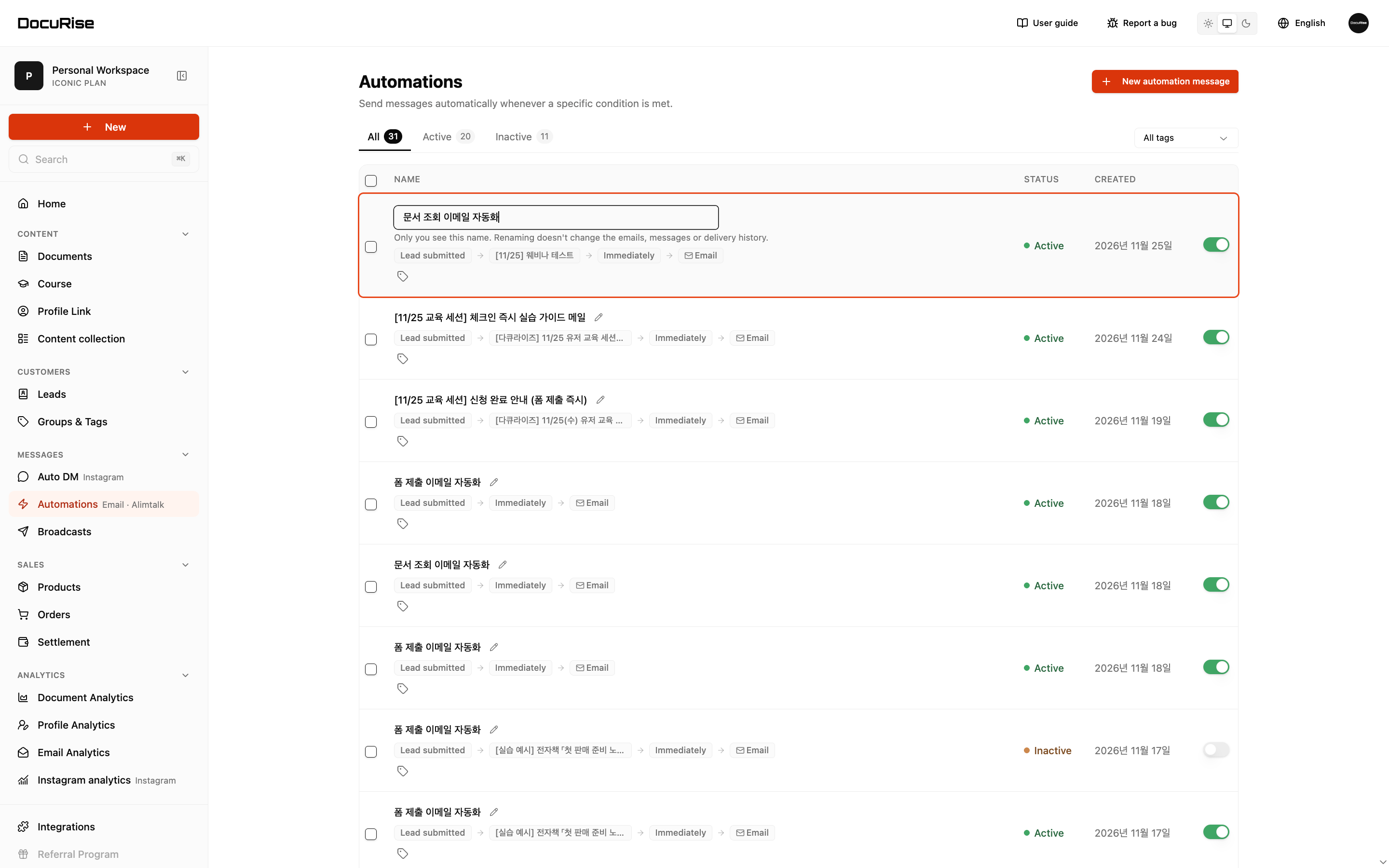
Clicking outside the field also saves. Press Esc to cancel.
Rename from the automation page
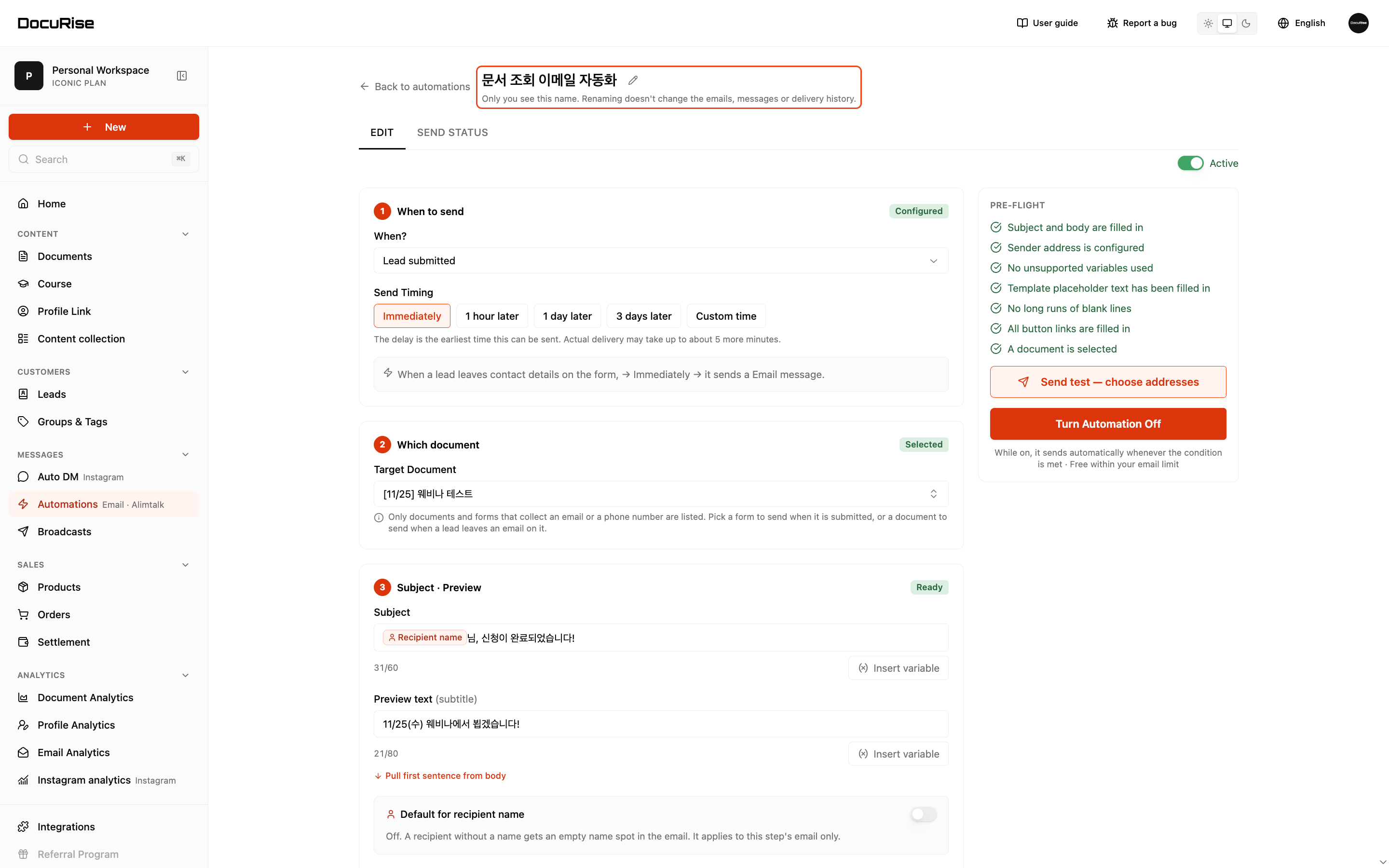
When you open an automation, the name and pencil icon are at the top, next to Back to automations. Click the pencil icon and rename it the same way.
Good to know
- Only you can see automation names.
- Renaming doesn't change the emails, messages, or send history.
Still need help?
Tell us what you need help with and which screen you are using.