Where can I see the results of an AlimTalk broadcast?
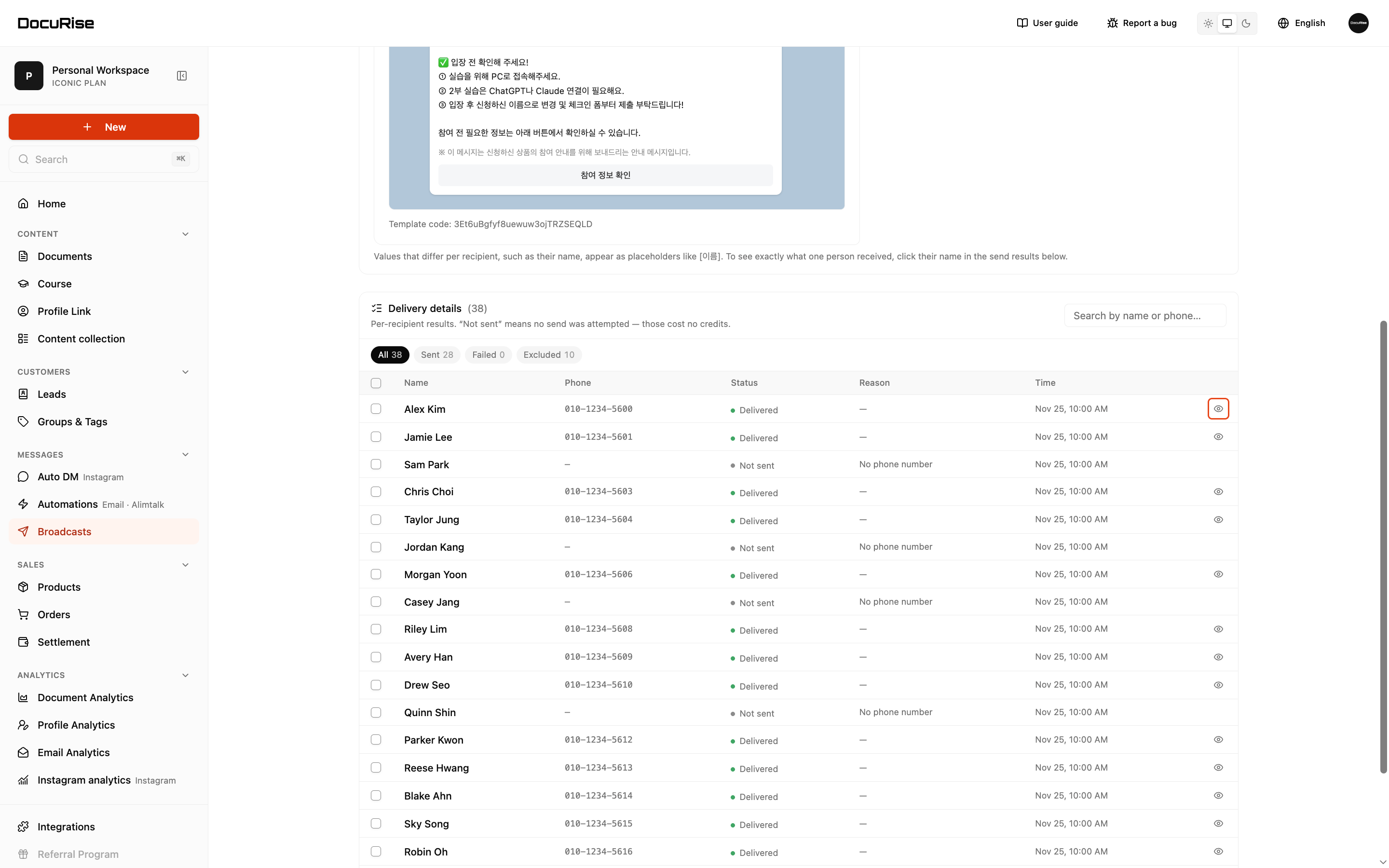
In Broadcasts, click the AlimTalk you sent. Delivery details shows the result for each recipient.
- Open Broadcasts.
- Click the AlimTalk you sent.
- Check each recipient's result in Delivery details.
Each result is one of these: Pending, Sent, Delivered, Failed, Not sent, Delivery unconfirmed.
- Not sent: no send was attempted, and no credits are used. The reason is one of these: No phone number, Opted out, No marketing consent.
- Delivery unconfirmed: sending stopped partway, so the result can't be confirmed.
- Failed: you can select failed recipients and send to them again, up to 50 at a time.
- While the campaign is still sending, you can't resend to failed recipients. Resend after sending finishes.
See the message that was actually sent
On the screen for the AlimTalk you sent, View Alimtalk shows the message that was actually sent.
Values that differ for each recipient, like their name, show as [name]. To see what one person actually received, click their name in Delivery details.
You can also click the eye icon at the right end of the name to open the same window. Recipients marked Not sent don't have an eye icon.
Depending on the send record, you may see the message rebuilt from the template. In that case, a note at the top of the window says it may differ from what was actually sent.
For messages sent by an AlimTalk automation, open the automation's Send status tab and click View message next to each recipient.
Still need help?
Tell us what you need help with and which screen you are using.