Can I tag broadcasts and automations to group them?
Yes. You can add campaign tags in the Broadcasts and Automations lists, then filter by tag.
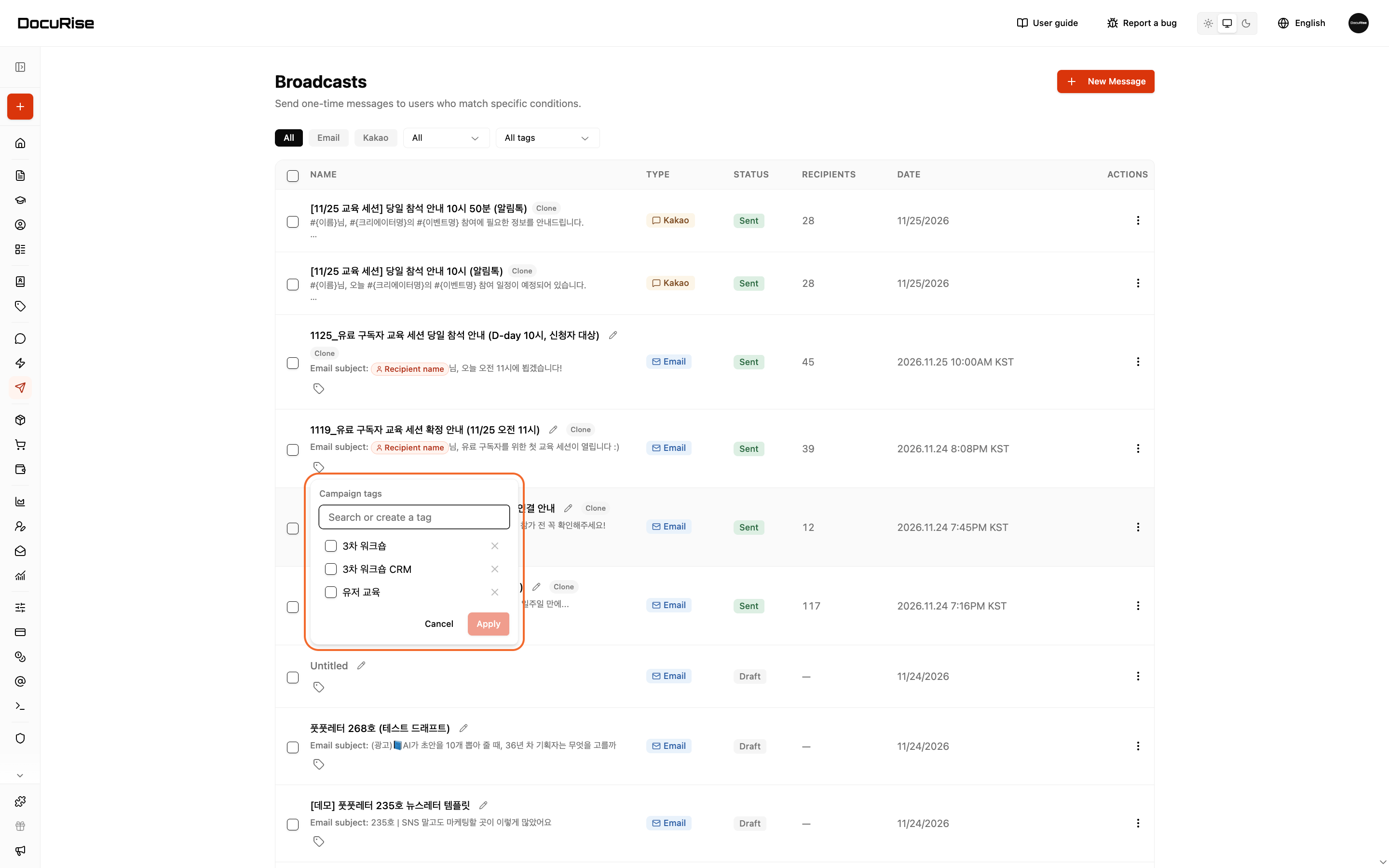
Tag a single item
- Open the Broadcasts or Automations list.
- Click the tag icon under the item name.
- Check the tags you want to add. To make a tag that isn't in the list, type its name in the Search or create a tag field.
- Click Apply to save.
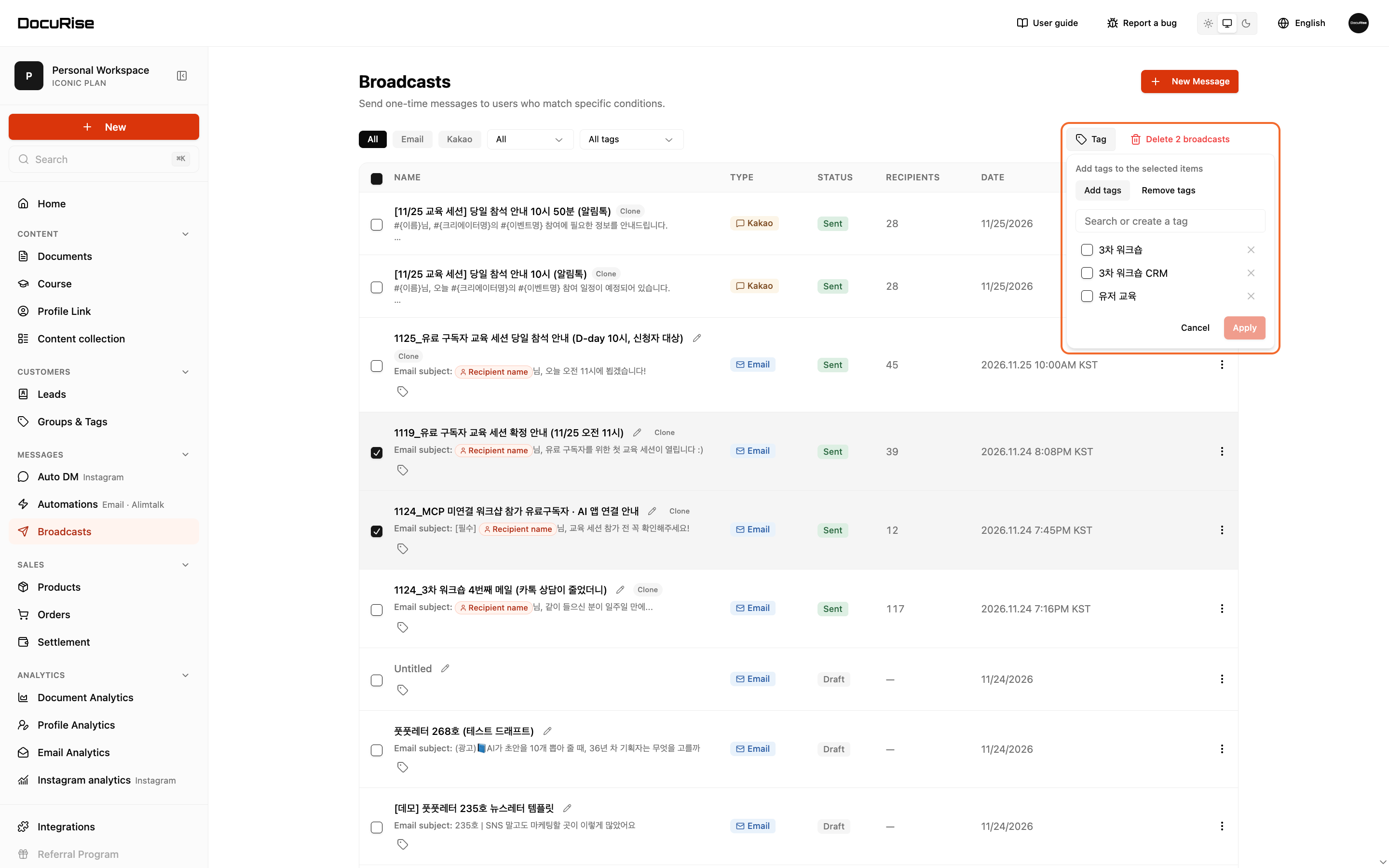
Add or remove tags on several items at once
- Select items with the checkboxes on the left of the list.
- Click the Tag button that appears above the list.
- Choose Add tags or Remove tags.
- Check the tags, then click Apply.
Filter by tag
- Pick a tag in the All tags field above the list to see only the items with that tag.
- You can also click a tag name on an item to see only the items with that tag.
Good to know
- You can add several tags to one item.
- Tag names can be up to 30 characters.
- In Broadcasts, you can only tag emails. In Automations, you can tag both email and AlimTalk.
- To delete a tag you don't use, click the X next to it in the tag window. If the tag is on any items, remove it from them first.
- Campaign tags are managed separately from the lead tags in Customers → Groups & Tags.
Still need help?
Tell us what you need help with and which screen you are using.