Can I see how many people clicked each link in an email I sent?
Yes. In Link clicks on the sent email, you can see the click rate and number of people who clicked for each link.
How to check clicks by link
- Open the email you sent in Broadcasts.
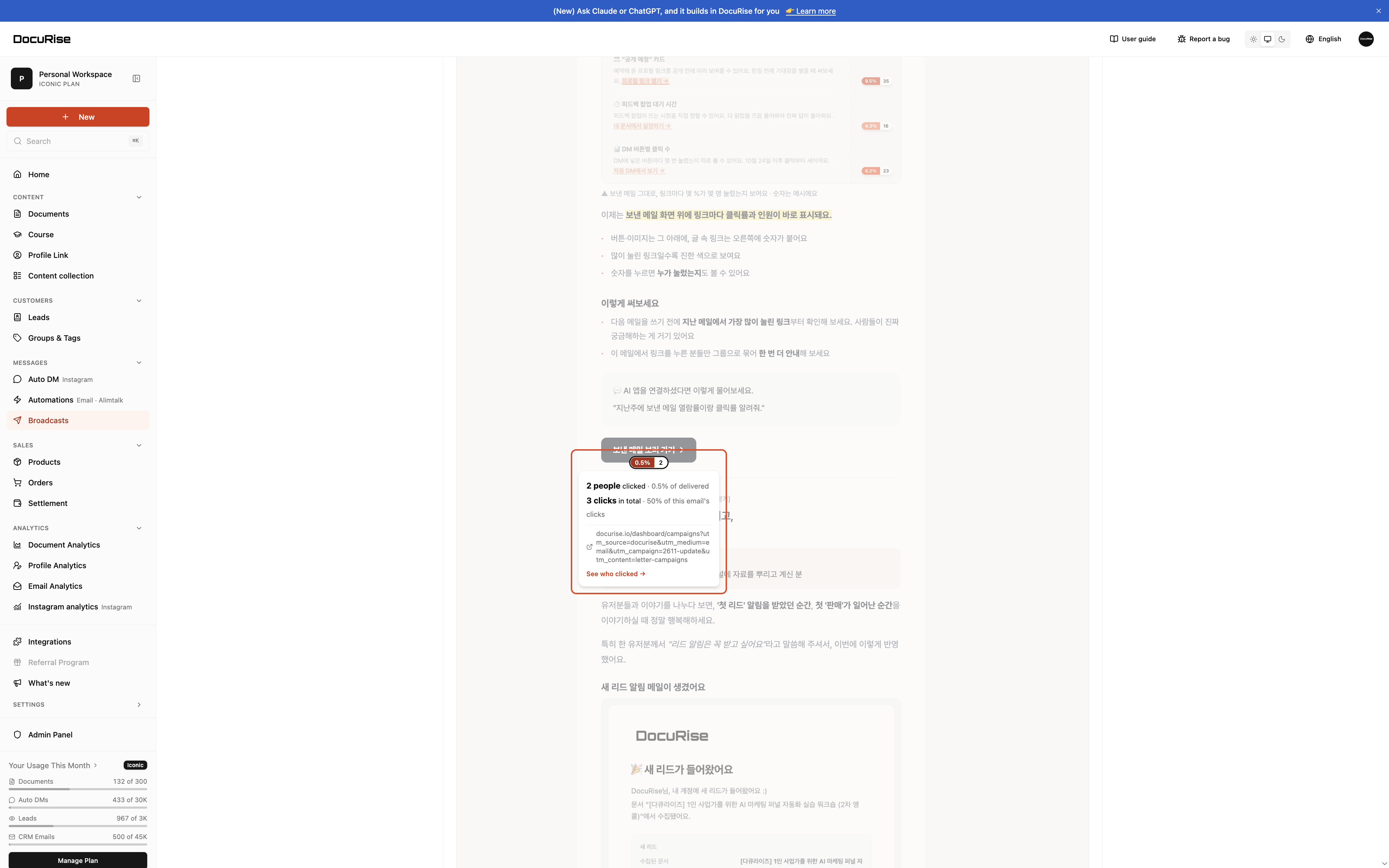
- Link clicks → Click map: check the badge on each link. It shows the click rate and the number of people who clicked.
- Click a badge to see the total clicks and the link URL.
- See who clicked shows who clicked that link and when.
By link compares the click rate, people who clicked, and total clicks for every link in one table. Click a row to see who clicked that link.
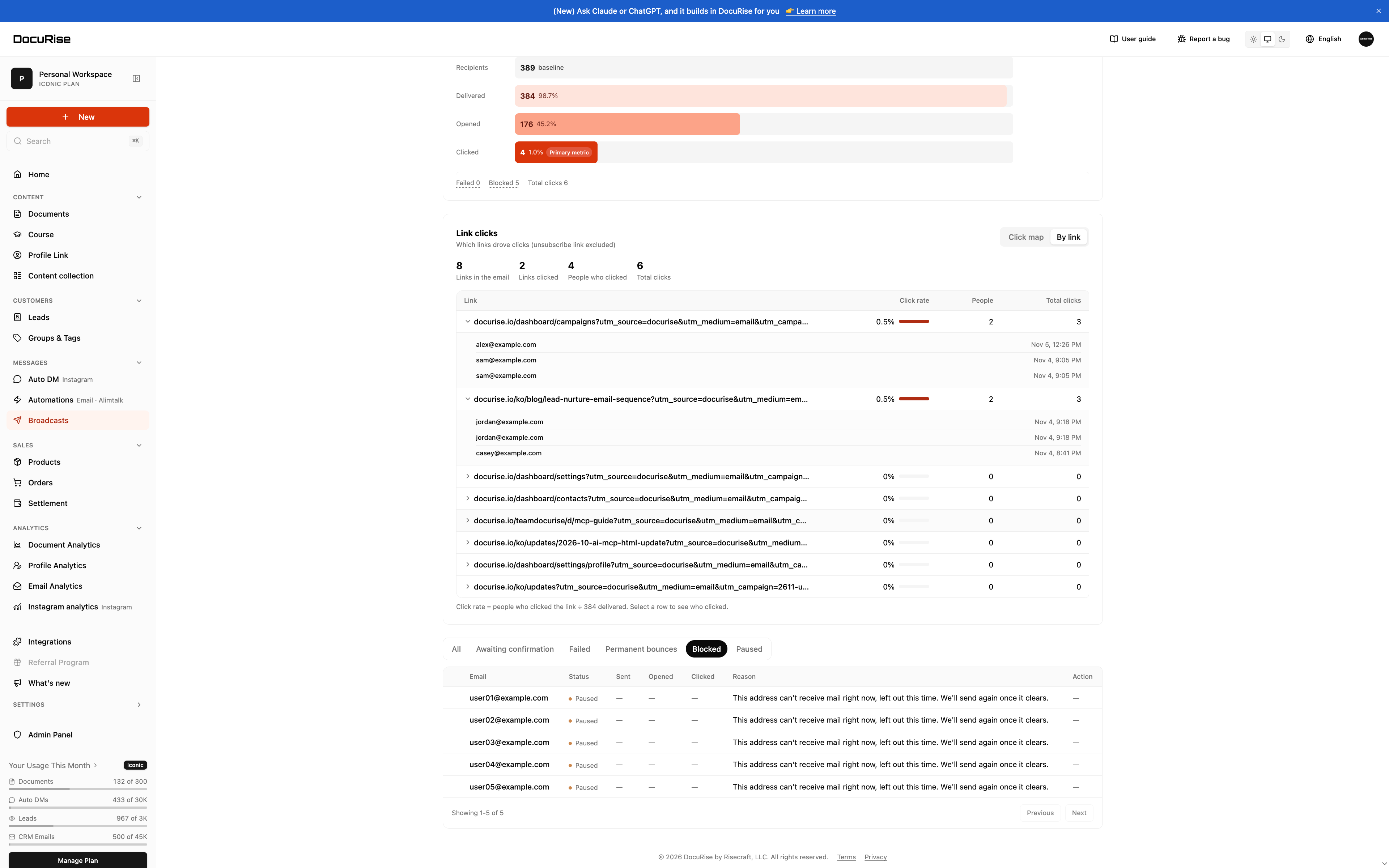
You can expand several link rows at once to compare them. Expanded lists stay open when you switch between Click map and By link.
An expanded list shows the 50 most recent clicks first. Click Load more to see the rest.
Click an email in the list to go to that person's lead page. Addresses that aren't in your leads show only the email.
The click rate is the number of people who clicked divided by the number of successful sends. Unsubscribe links aren't counted.
You can see the same view for email steps in automations.
Check emails that weren't received
Below the send funnel, people who didn't receive the email are grouped by reason.
- Awaiting confirmation: the receiving mail server hasn't reported whether the email arrived yet.
- Failed: the email was sent but not received. Most of these are bounces. Some are permanent, like an address that doesn't exist, and some are temporary, like a full mailbox.
- Blocked: not sent because an earlier email to this address bounced permanently or was reported as spam.
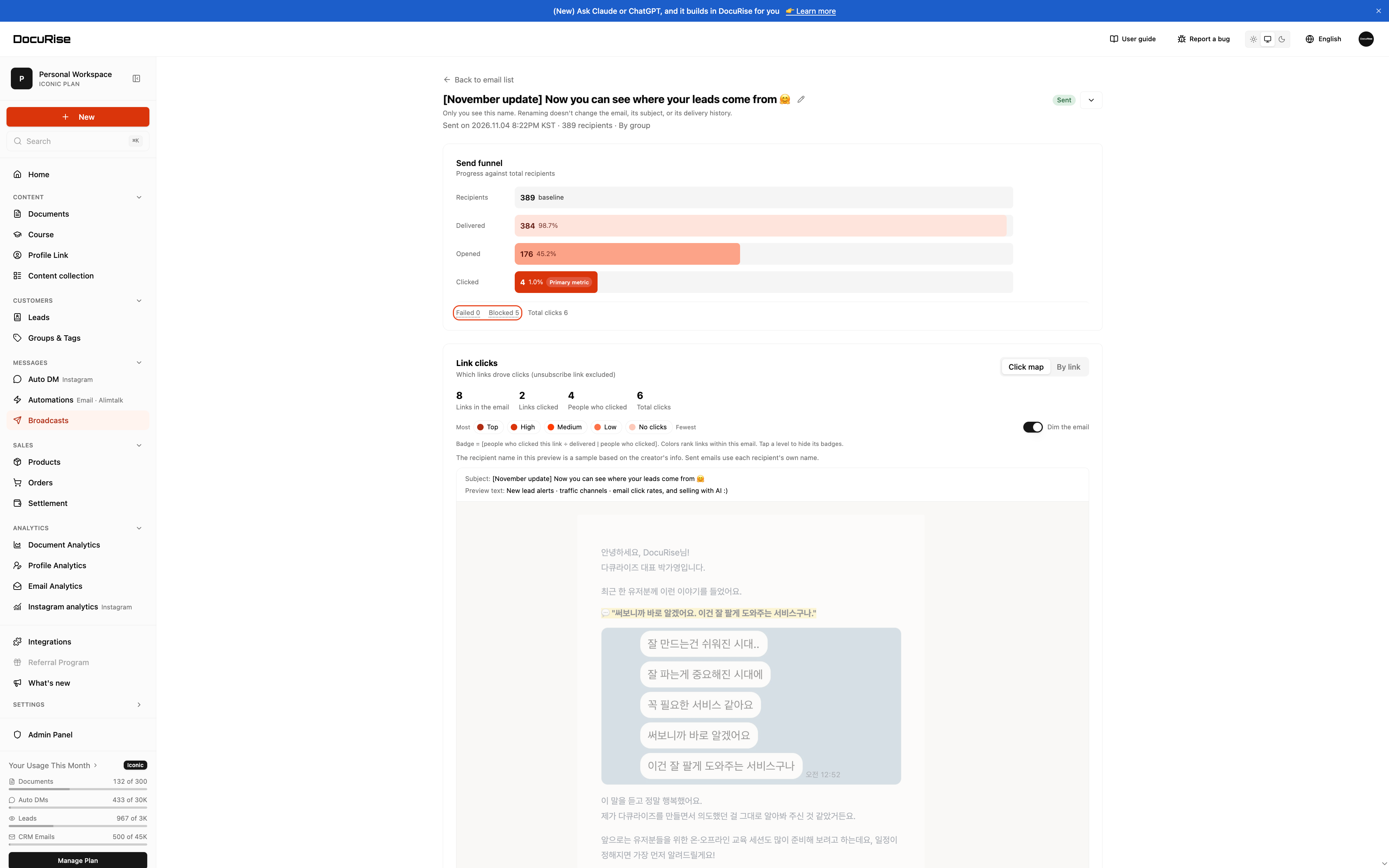
Click a number to show only those people in the table below. You can also filter with the Awaiting confirmation, Failed, Permanent bounces, and Blocked buttons above the table.
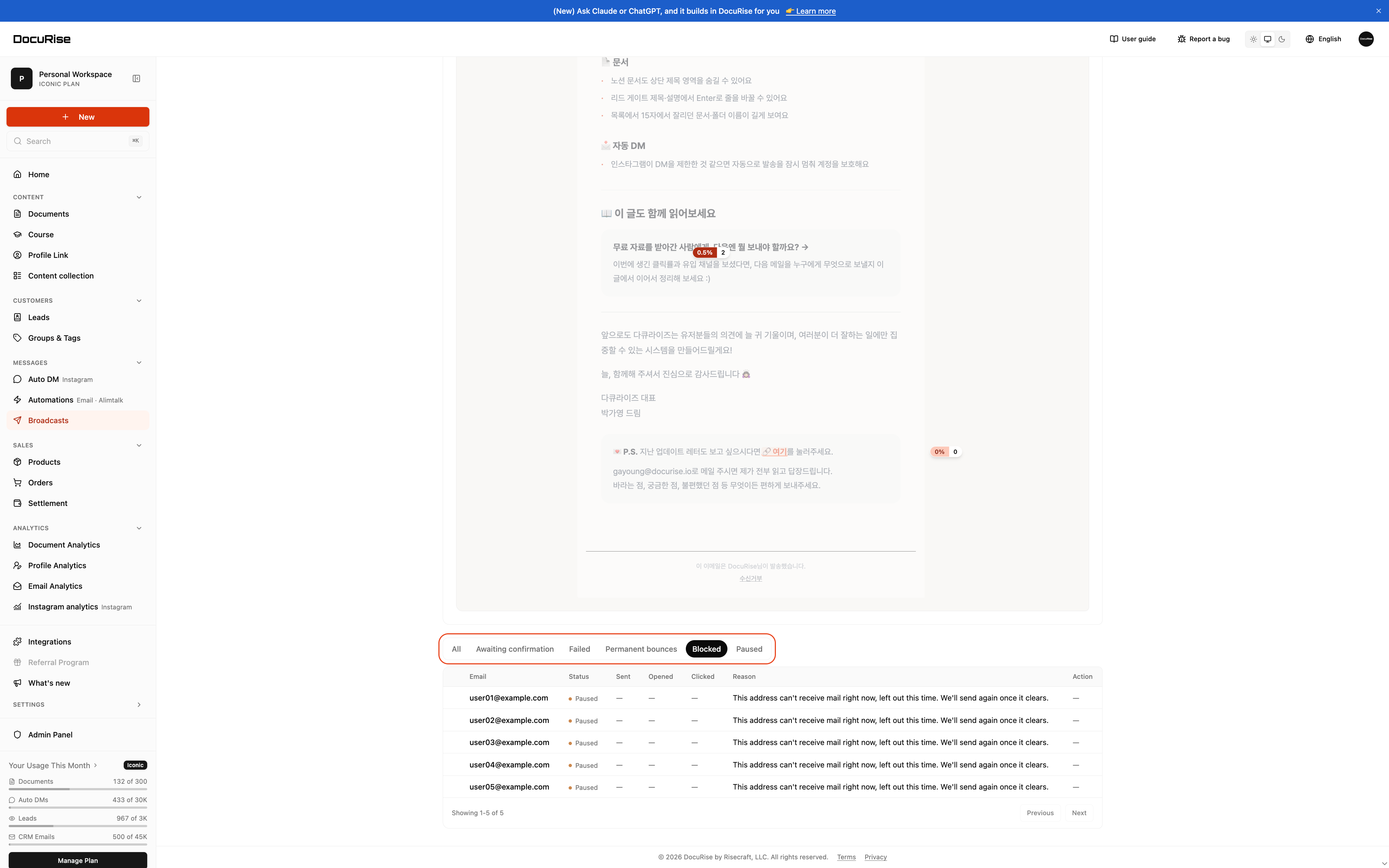
People who didn't open the email or click a link aren't counted in these numbers.
Still need help?
Tell us what you need help with and which screen you are using.