Can I import customer emails I've already collected with a CSV?
You can import your existing email contacts with a CSV and manage the imported leads in DocuRise.
- Go to Customers → Leads and click CSV Import.
- Choose a CSV file. You can upload up to 10MB and 10,000 rows.
- Choose where each column maps. Map the email column to Email.
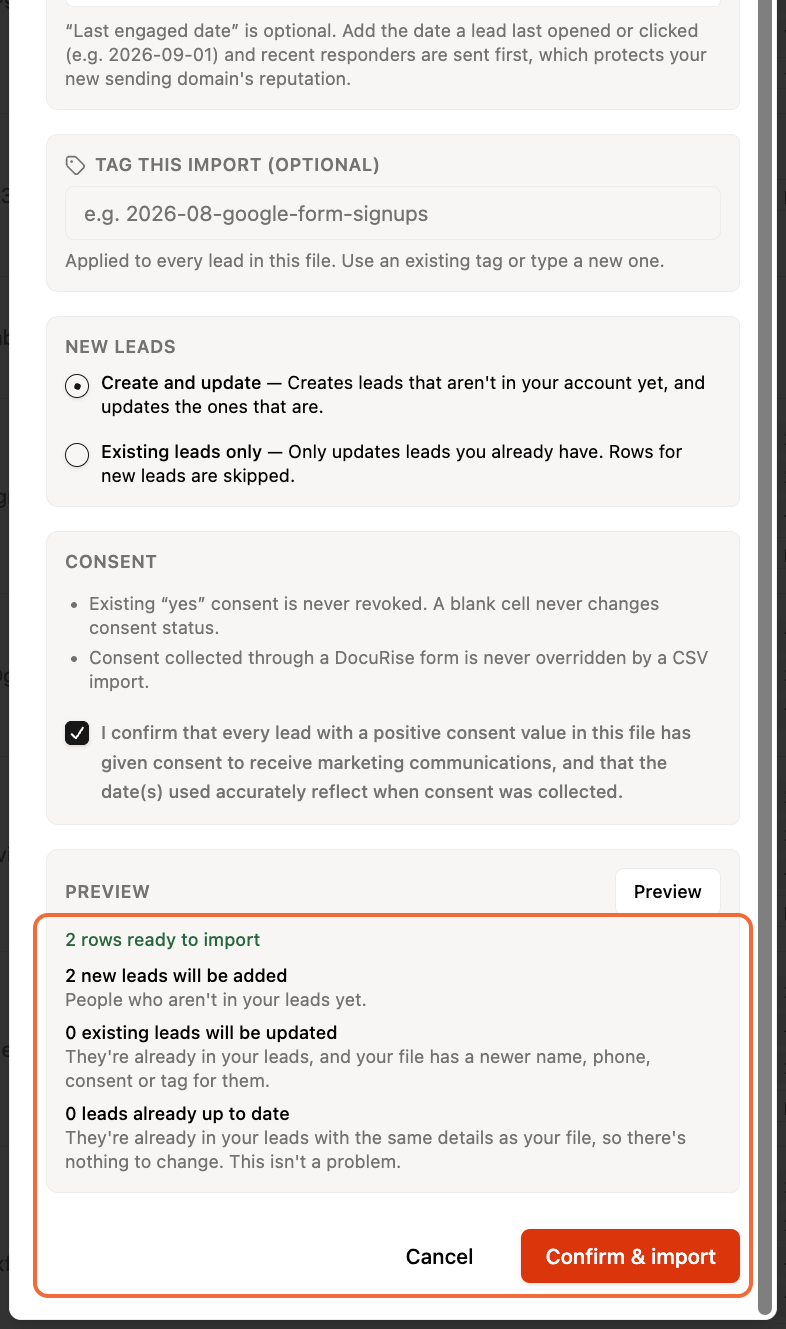
- Under New leads, choose Create and update or Existing leads only.
- Check the confirmation box under Consent.
- Click Preview to see how many leads will be added, how many will be updated, and how many rows can't be imported.
- Click Confirm & import.
- If you change the mapping or the checkbox after previewing, click Preview again.
- DocuRise uses email to tell whether a contact already exists. Existing emails are updated instead of being added again.
- Rows with neither an email nor a phone number show up under rows that couldn't be imported in the preview and aren't imported.
- Rows with a phone number but no email are imported too. You can only send AlimTalk to these contacts.
Still need help?
Tell us what you need help with and which screen you are using.