Can I hide the @username under my profile name?
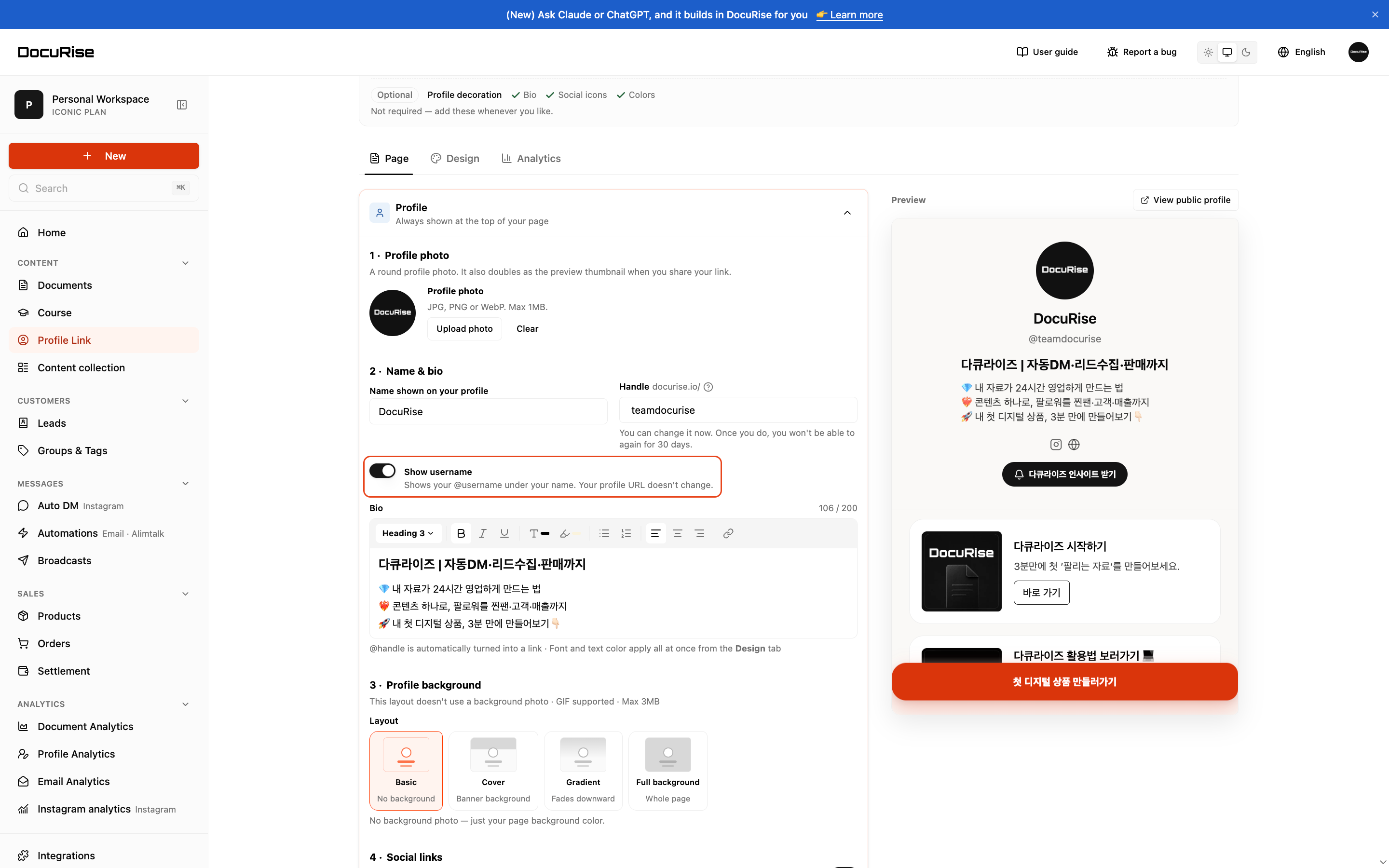
Yes. Turn off the Show username switch and the @username line no longer shows under your name.
How to hide it
- In Profile Link → Page tab, click Edit on your profile.
- Under 2 · Name & bio, turn off the Show username switch.
- Check the preview on the right to make sure the @username line is gone.
Good to know
- The line disappears from both the editor preview and your public profile.
- No empty space is left where the line was.
- Your username and profile address don't change.
- It's turned on by default.
Still need help?
Tell us what you need help with and which screen you are using.